-
What is Certification Preparation? Beginning Your Journey Towards Certification Exams
Read articleGetting a certification from a trusted third-party provider is a great way to demonstrate your expertise, learn new technologies and advance your career. Accordingly, Udemy has created a certification preparation feature, which helps you easily find content relating to third-party certification exams. This article outlines how you can review and select a certificate preparation experience that meets your learning needs.
Please note: Currently, the certification preparation feature is only available to learners enrolled in an eligible Udemy subscription.
How to access the Certification preparation page on a browser
Personal Plan subscribers can access the certification page on a browser by following the steps below:
1. After logging into your Udemy account, move your cursor to Explore at the top left of the page.
2. Select Certification preparation.
Accessing the Certification preparation screen on the mobile app
If you’re using the Udemy mobile app, you can access the Certification preparation screen by following these steps. Please be sure you’re using the latest version of the app so that you can access the certification preparation feature.
1. Tap the Search icon at the bottom of your screen.
2. In the Explore badges section, tap Certification preparation.
You can also access the Certification preparation feature by tapping the applicable section on the Featured screen.
Reviewing certification preparation experiences
See how the certification preparation experience on Udemy can help you:
- Choose the right certification that best aligns with your current role and career goals: explore learning content on Udemy to help you prepare for your certification exams.
- Study and prepare: Once you've selected a certification to prepare towards, you'll need to study and prepare for the exam. Udemy provides a range of courses to support your study and offers a variety of resources to help you prepare, including practice exams and documentation, as part of our courses.
- Stay organized: Keep track of what certifications you are working towards in My certification preparation. To focus your efforts on relevant content, select your certification and go to Learning in progress. Here, you can track your completed content and identify what is remaining for your certification preparation.
- Stay motivated: Set learning events to help you stay motivated towards your learning goal. Remember why you are taking the certification and stay motivated by setting goals and rewarding yourself for your progress.
Remember, getting a certification is a valuable investment in your career, but it requires time and effort to prepare and maintain your certification. Good luck!
Please note: Learners will need to complete their certification exam through the official exam provider across these certifications. Udemy does not provide the certification exam, but rather, focuses on curating the highest quality courses to help your users prepare for and successfully pass their exams.
Will badges be added or removed and how will this impact my current learning?
At Udemy, we're dedicated to providing our customers with access to the highest quality badge-related content most relevant for workplace learning. As such, we are always updating the collection to make sure our courses and content are up-to-date and relevant. Therefore, there may be times when a badge is no longer available on the certification landing page. In this case, if the content is still available on Udemy, you can view this under My learning.
This could be due to:
- The applicable courses are retired from the collection and therefore, they are no longer available in the Personal Plan subscription. As a result, we can no longer support the related certification preparation experience.
- Badges may also be removed from the certification preparation experience, as part of quality checks for supporting content. In this case, courses will still be available for learners within My learning.
- Availability of new certification preparation experiences becoming available through new topics and courses curated into the Personal Plan subscription catalog.
Uploading or importing a badge into your Udemy account
When you’ve completed your certification exam on a third-party site, you will be able to upload your badge to Udemy to validate your achievement. Learn how.
-
In-course labs: Frequently asked questions
Read articleThis article provides answers to frequently asked questions regarding in-course labs and the learning experience.
- Please note: In-course labs are accessible to learners enrolled in eligible Udemy subscriptions.
Table of Contents
- What are labs?
- What are in-course labs?
- Who can access labs and workspaces?
- Is the in-course lab content available in multiple languages?
- How can learners find courses with in-course labs?
- Will learners need to enter additional credentials to log into the workspace from the in-course lab?
- Can learners pause, leave, or resume work in a lab?
- Can learners check their task solutions?
- How long are the workspace sessions?
- Which topics will in-course be available for?
- Will learners need to enter additional credentials to log into the workspace from the in-course lab?
- Will labs be available for non-technical courses?
What are labs?
Labs are hands-on learning experiences that give learners the opportunity to put knowledge into action. By working through tasks or projects in a technical workspace, users move beyond theory to real application. Each lab also includes access to a dedicated companion workspace, providing a safe, risk-free environment where users can practice and refine their skills at their own pace.
What are in-course labs?
In-course labs are practice experiences created by the course instructor and are embedded directly into a Udemy course and completed in secure, pre-configured environments.
With in-course labs, learners get:
- Seamless video-to-lab integration that helps connect theory with practice.
- Real-time practice of lab lessons using secure tailor-made workspaces.
- Resource assets like sample datasets, setup instructions, and documentation to support learning.
Learn more about in-course labs.
Who can access labs and workspaces?
Learners who are enrolled in eligible Udemy subscriptions, like Personal Plan, can access labs and workspaces.
If you’re not already subscribed to an eligible plan, you may see a prompt to upgrade your subscription when you click Start Practice on a lab. You can upgrade to the required subscription if you wish to access the workspace and complete labs.
Is the in-course lab content available in multiple languages?
Yes, instructors can create labs for their courses in the language of their choice.
How can learners find courses with in-course labs?
Learn how to find in-course labs.
Will learners need to enter additional credentials to log into the workspace from the in-course lab?
In most cases, learners can access a lab’s secure workspace without entering credentials. The exceptions are companion workspaces for Microsoft Azure and Google Cloud Platform labs, which require learners to enter Udemy-provided credentials.
Can learners pause, leave, or resume work in a lab?
In in-course labs, learners can't pause or resume a workspace once it has started. If they leave before finishing, the workspace will close, and their work won’t be saved. When they return, they’ll restart the lab in a fresh workspace from the beginning.
Can learners check their task solutions?
Yes, learners can use the Udemy AI Assistant feature, AI task review, to receive feedback on their task solution. Learn more about using this feature.
How long are the workspace sessions?
In in-course labs, each workspace session lasts 60 minutes, but learners can restart the workspace as many times as needed to complete the lab.
Which topics will in-course labs be available for?
Currently, in-course labs and their companion workspaces are available in data science and development topics. More workspaces will be made available to instructors, enabling them to create labs for courses across popular technologies.
Do learners need to complete in-course labs to finish the course and earn a completion certificate?
No. In-course labs are optional and don't count toward course completion. Learners can earn a course completion certificate without completing the labs.
Will labs be available for non-technical courses?
There are currently no plans to create in-course labs for non-technical topics, but stay tuned for further developments.
-
In-course labs
Read articleThis article outlines the in-course labs' learning experience and how learners can access the feature.
Please note: In-course labs and their companion workspaces are only available to learners enrolled in eligible subscriptions. You may see a prompt to upgrade your subscription when you click Start Practice on a lab. By completing the subscription upgrade, you’ll gain access to the lab workspace.
What are in-course labs?
In-course labs are hands-on learning experiences that allow learners to practice the technical skills they are learning in a course, directly within real-world environments.
In-course labs are comprised of three parts:
- Instructional video - A video from the course instructor that explains the activity learners will complete in the lab.
- Technical workspace environment - A real technical environment where learners complete the activity described in the instructional video.
- Lab tasks - Steps that the course instructor has created to help structure the lab activity.
- AI task review - For eligible courses, you can submit your task solutions to the Udemy AI Assistant to receive AI-guided feedback, helping you learn and improve your skills.
How to access in-course labs
In-course labs can be found within selected courses. To find courses that contain an in-course lab, navigate to the search bar, enter a course topic, and click on the “Labs” filter to find courses with an integrated lab. Learn more about searching for courses on Udemy.
Once enrolled in a course with an in-course lab, you can scroll through the “Course content” on the right side. Here, you will see a “Lab” tag on a specific lecture to indicate it has a lab. Select a lecture with the “Lab” tag to start an in-course lab.
Note: When you select a lab, you will navigate to the in-course lab-taking experience. You can exit the lab to return to the course and proceed with other lectures in the course.
How to use in-course labs
Starting an in-course lab
To start an in-course lab, select a lecture tagged with “Lab” in the Course content.
Selecting a lecture tagged with “Lab” will navigate you to the lab experience.In this experience, you will begin by watching a video lecture that introduces the lab. While the video plays, the technical workspace is loading in the background, so it’s ready when it’s time to start the lab.
Using timestamps
As you’re watching the instructional video, you’ll encounter timestamps that pause the video and prompt you to start practicing. These timestamps are added by the course instructor and align with specific lab tasks the instructor wants you to complete.
After selecting “Start Practice” on a timestamp, you are taken to the Practice section of the activity, where the workspace environment and task automatically open, ready for you to begin practicing.
Using the workspace
In the practice section of the activity, you have access to a technical workspace. Since this workspace is selected and preconfigured by the instructor specifically for your lab activity, the workspace may vary depending on the lab activity.
Each workspace has a 60-minute timer to complete the lab. When the timer ends, the workspace will close, and any work from that session won’t be saved. You can restart the workspace at any time to continue the lab, but it will open as a fresh workspace, and you’ll need to begin again from the first step.
Accessing tasks
Tasks are step-by-step instructions that guide learners through the lab. You can access lab tasks in two ways.
- The first method is to select a timestamp while watching the video instructions. Each timestamp links to a specific task and opens that task in the Practice section.
- The second way is to use the navigation menu in the top-right corner. This menu lists all available tasks and can be accessed from either the video or Practice section.
Tasks include four main parts:
1. Task title - A title for the task you are completing
2. Link to video - A direct link to the video timestamp for the task you are working on
3. Lab assets - Downloadable resources or code snippets you can use to help complete the task
4. Mark task as done - An indicator you can use to mark tasks as complete and move on to your next task
5. Submit for review - If available for the lab, submit your task solution for AI review to receive feedback before moving on to the next task.
After you click Submit for review, the Udemy AI Assistant will check your work.
If you completed the lab without any errors, you’ll receive a success message.
If there are errors in the completed task, you’ll receive a message with details. You can then resubmit your task or ask the Udemy AI Assistant further questions.
Using the AI Assistant while taking in-course labs
While taking an in-course lab, you can use the Udemy AI Assistant to ask questions about the lab and for additional guidance regarding its technical concepts. You can access the AI Assistant tab from the top right of the course player.
Completing the lab
A lab is complete when all tasks for that lab are marked as complete.
When all tasks are marked complete you will see a completion screen. On this screen, you can choose to continue working in the lab, or you can exit the lab and move on to the next lecture. When you exit the lab, you’ll return to the course to continue with the next lecture.
Lab views
In-course labs have three views to help you work through the lab activities in the way that best fits your learning style:
1. Full-screen video, or the “Watch” tab. This is the view you will start each lab with, and allows you to watch the lab instructions in full screen
2. Full-screen workspace, or the “Practice” tab. This view provides full focus to the workspace and allows you to fully immerse yourself in the technical work at hand.
3. Split screen. This view allows you to watch the instructional video and access the workspace environment at the same time.
In this split-screen view, you can use the split in the middle of the panels to change the panel size of the video or workspace.
Navigating back to the course
There are three ways to navigate back to the course from an in-course lab.
Note: If you leave an in-course lab before finishing, the workspace will close and any work from that session won’t be saved. When you return, you can restart the lab in a fresh workspace from the beginning.
1. If you click the “X” button on the top left of the screen, you will be prompted to exit the lab and return to the course.
2. If you click the “Next lecture arrow” on the top left of the screen, you will be prompted to exit the lab and move on to the next lecture in the course.
3. If you click on the “Next lecture” button on the Lab Completion screen, you will also be prompted to exit the lab and move on to the next lecture in the course.
Note for Safari users
Udemy labs run in an environment isolated from udemy.com. You will need to allow third-party cookies in your browser settings to use the preview browser in these labs.
You can change these settings in Safari -> Preferences -> Privacy. Be sure you are using the latest version of Safari and that the checkbox below is unselected:
-
Labs and workspaces
Read articleThis article outlines our lab and workspace features.
- Note: Labs and workspaces are available to learners enrolled in eligible subscriptions.
What are labs?
Labs are hands-on learning experiences that give learners the opportunity to put knowledge into action. By working through tasks or projects in a technical workspace, users move beyond theory to real application.
Each lab also comes with a dedicated companion workspace, providing a safe, risk-free environment where users can practice and refine their skills at their own pace.
With in-course labs, learners can apply what they’re learning through guided tasks, embedded in their Udemy courses and completed in secure, pre-configured environments.
With in-course labs, learners get:
- Seamless video-to-lab integration that helps connect theory with practice.
- Real-time practice of lab lessons using secure tailor-made workspaces.
- Resource files like sample datasets, setup instructions, and documentation to support learning.
Learn more about in-course labs and how to access them.
What are workspaces?
A workspace is the virtual, technical environment where a learner practices hands-on activities.
- Note: Review important information about workspace sessions and restrictions on Udemy.
-
Labs: How to Select a Mode
Read articleLabs are project-based learning experiences in which learners work through tasks in real-world technical environments, called workspaces. A lab can be completed in three different modes, each offering differing levels and styles of guidance. This article explains each type of mode and how to access them for your lab.
Please note: Labs are available to learners enrolled in an eligible Udemy subscription.
What are modes? And what types of modes are there?
Modes allow you to decide the type of structure and guidance you want to have as you complete a lab.
For a given lab, you can choose what level of guidance you want to receive while completing the real-world project. A Udemy lab can be taken in three different modes:
1. Follow-along: The follow-along mode provides up-front step-by-step instructions for how to complete the lab. You complete the lab project by following detailed tutorials organized into tasks.
- We recommend this mode if you are brand new to a topic or skill area.
2. Guided challenge (recommended): In the guided challenge mode, the lab project is broken down into tasks, resembling an IT ticket management system used by technical professionals. You are assigned tasks, attempt them, and then check your work against provided solutions. This mode provides high-level guidance on how to approach the overall project and allows you to have hands-on experience and self-assess your progress along the way.
-
We recommend this mode for the majority of learners. This mode is a good fit if you are familiar with the topic and need to practice the real-world application.
- Please note: Selected labs include automated reviews in Guided challenge mode for learners to check their work and get specific and actionable feedback on their task attempts.
3. Open challenge: The open challenge mode provides a minimum level of guidance as you determine the overall approach and steps needed to complete the project. You are provided with a library of resources to work through the project and will complete the work on your own with minimal guidance and support
- We recommend this mode if you are feeling confident and ready to complete a real-world project on your own.
How do I select my preferred mode?
After accessing your lab, you can select your preferred mode on the lab overview page.
1. Under Choose your mode, select your preferred mode for this lab.
2. Click Start lab.
-
Automated Lab Review
Read articleThis article outlines the Automated Lab Review (ALR) feature for labs, which provides timely and specific feedback for your work in a lab’s workspace.
Please note: Labs and assessments are only available to learners enrolled in an eligible Udemy subscription.
Locating labs that feature an Automated Lab Review
You can locate labs that feature an automated lab review by following the steps below:
1. Click on the Labs tab on your Udemy home page or in My learning.
2. Click Explore labs.
3. Enable the Automated lab reviews filter to ensure your search results include labs with the feature.
How to start a lab with an Automated Lab Review
1. Start the lab in Guided Challenge Mode (Note: an Automated Lab Review is only available in Guided Challenge Mode).
2. From the project assignment page, launch the Workspace by clicking the “Launch workspace" button. The workspace is where you’ll complete each task. Learn more about workspaces.
View the tasks for the lab by clicking on the “See your tasks” button.
From the Tasks view, you will see a list of tasks required to complete the lab, instructions for the task, resources to complete the task, and the “Start review” button.
Follow the instructions to complete each task, in order, in the provided workspace. When you are ready to check your work, click the “Start review” button for real-time feedback about your performance on the task.
Successful completion of tasks in this lab
The lab will review your work and display your results. If you have successfully completed the task, the “Mark task as complete” button will be enabled. You can click “Mark task as complete” and continue to the next task.
Task errors
If there are errors in your solution, the review section will provide feedback and guidance on how to approach the task again more accurately. You can also click on the “Example approach” button for additional guidance.
When you are ready for another review, click the “New review” button. Once the “Mark task as complete” button is no longer grayed out and enabled, click on it to proceed to the next task in the lab.
Note for Safari users
Udemy labs run in an environment isolated from udemy.com. You will need to allow third-party cookies in your browser settings to use the preview browser in these labs. You can change these settings in Safari -> Preferences -> Privacy. Be sure you are using the latest version of Safari and that the checkbox below is unselected:
-
How to Access Data Science Labs
Read articleLearners who are interested in data science can enhance their learning experience through our data science labs.
Note:
- Please see below for important information regarding the use of Workspaces.
- Labs are only available to learners enrolled in an eligible Udemy subscription.
- Multi-factor authentication (MFA) must be enabled for your account in order to launch labs. Learn how to enable MFA for your account.
How to access labs
Step 1: Click on the Labs tab on your Udemy home page or in My learning.
Step 2: Click Explore labs.
This will take you to the lab’s overview page, where you can view all the available labs.
You can search for data science labs using either the search bar or the Data science radio button to filter labs and then sub-filter by topic. Click on any lab listed to begin learning.
Selecting a lab mode
Once you select a lab, you’ll need to select which mode you want to learn in. We offer multiple modes for each lab so you can select your preferred level of guidance. Learn how to select a mode for a lab.
Launching the workspace
After selecting the mode, click on the Launch workspace button in either the top right corner or within the lab’s “project assignment” to open the workspace associated with the lab.
Workspace sessions and restrictions
Review important information about workspace sessions and restrictions on Udemy.
Ending workspace sessions
You can end the workspace session by clicking End at the top of the page. Please note that ending a workspace instance will reset the workspace; all data will be cleared and will not be saved. This action can't be undone.
Note for Safari users
Udemy labs run in an environment isolated from udemy.com. You will need to allow third-party cookies in your browser settings to use the preview browser in these labs. You can change these settings in Safari -> Preferences -> Privacy. Be sure you are using the latest version of Safari and that the checkbox below is unselected:
-
How to access Development labs
Read articleLearners interested in web development, and who have enrolled in an eligible Udemy subscription, can enhance their learning experience through our development labs.
The labs allow you to apply your skills by completing real-world projects using a workspace.
Note:
- Please see below for important information regarding the use of Workspaces.
- Learn how to enable MFA for your account.
How to access Development labs in Personal Plan
To access Development labs please follow the steps below.
1. Click on the Labs tab on your Udemy home page or in My learning. You can also search for labs on the Udemy marketplace.
2. Next, click Explore labs.
3. From the labs overview page, click on the Development radio button on the left-hand side to see all of the Development labs.
4. Next, click a Development lab topic from the Popular Topics list on the left.
5. To choose a Development lab, click Start practicing on any lab listed on the right to begin learning.
6. Select a lab mode.
Once you select a Development lab, choose which mode you want to learn in. We offer multiple modes for each lab so users can select their level of guidance.
Using Safari? Please review the last section in this article for important information.
- Next, launch the Workspace.
After selecting the mode, click on the Launch button in the top-right corner to open the workspace associated with the lab.
Ending workspace sessions
You can end the workspace session by clicking End at the top of the page. Please note that ending a workspace instance will reset the workspace; all data will be cleared and will not be saved. This action can't be undone.
Workspace sessions and restrictions
Review important information about workspace sessions and restrictions on Udemy.
Note for Safari users
Udemy labs run in an environment isolated from udemy.com. You will need to allow third-party cookies in your browser settings to use the preview browser in these labs. You can change these settings in Safari -> Preferences -> Privacy. Be sure you are using the latest version of Safari and that the checkbox below is unselected:
-
How to Access DevOpsLabs
Read articleLearners who are interested in DevOps can enhance their learning experience through our DevOps labs.
Please note:
- Labs are available to learners enrolled in an eligible Udemy subscription.
- Please see below for important information regarding the use of Workspaces.
- Learn how to enable MFA for your account.
How to access DevOps labs
1. Click on the Labs tab on your Udemy home page or in My learning.
2. Click Explore labs. This will take you to the labs’ overview page, where you can view all available labs.
3. You can search for labs using either the search bar or by selecting the DevOps radio button to filter labs and then sub-filter by Popular topic.
4. Click on any lab listed to begin learning.
Selecting a lab mode
Once you select a DevOps lab, you’ll need to select which mode you want to learn in. We offer multiple modes for each lab so you can select your preferred level of guidance. Learn how to select a mode for a lab.
Launching a workspace
After selecting the mode, click on the Launch workspace button in either the top right corner or within the lab’s “project assignment” to open the workspace associated with the lab.
Workspace sessions and restrictions
Review important information about workspace sessions and restrictions on Udemy.
Ending workspace sessions
You can end the workspace session by clicking “End” at the top of the page. Please note that ending a workspace instance will reset the workspace; all data will be cleared and will not be saved. This action can't be undone.
Note for Safari users
Udemy labs run in an environment isolated from udemy.com. You will need to allow third-party cookies in your browser settings to use the preview browser in these labs. You can change these settings in Safari -> Preferences -> Privacy. Be sure you are using the latest version of Safari and that the checkbox below is unselected:
-
Workspace sessions and restrictions
Read articleLearners enrolled in eligible subscriptions can enhance their learning experience by completing real-world, hands-on activities in workspaces. For example, workspaces are provided by Udemy so that learners can complete certain activities in labs for web development.
This article includes important information and restrictions about workspace sessions on Udemy.
Workspace session timelines
In order to conserve resources, workspaces have 3-hour sessions: at the end of the 3-hour session, any running resources will be stopped. Please note that in such cases any progress made in the workspace or data entered will not be saved.
- Learners will be notified when there is 30 minutes left in their session, and from that juncture, a countdown to the 3-hour mark will appear.
If you wish to take the workspace session again, you will need to start a new session.
Personal Plan learners are limited to 27 hours of workspace usage per week for in-course labs. Once a learner reaches this limit, their workspace will end, and they will not be able to access workspaces until the following week.
Ending workspace sessions
You can end the workspace session by clicking End at the top of the page. Please note that ending a workspace instance will reset the workspace; all data will be cleared and will not be saved. This action can't be undone.
Workspace session restrictions
- Do not add private or sensitive information (such as passwords) into the workspaces. You may only use simulated, anonymous, non-personal, non-live data or information when accessing or using workspaces.
- You may only access and use workspace sessions for your personal, non-commercial, educational purposes. Additional restrictions are listed in Section 8 of our Terms of Use.
Temporary disablement of workspace sessions
Udemy may temporarily disable workspaces on our platform for technical or security reasons. Udemy will notify learners if this occurs and when the workspaces and labs can be accessed again.
Please note that in such cases, any progress made or data entered will not be saved. If you wish to take the workspace session again, you will need to start a new session.
-
Taking Assessments on the Udemy Mobile App
Read articleThis article explains how eligible users can access and complete assessments while accessing Udemy on our mobile app.
- Please note: as of December 5th, 2023, assessments are only available to learners who were enrolled in the Personal Plan subscription prior to this date.
- See how to access and complete assessments while learning on a browser.
How to start and complete assessments on the mobile app
Eligible users can follow the steps below to start and complete assessments, while learning via the Udemy mobile app:
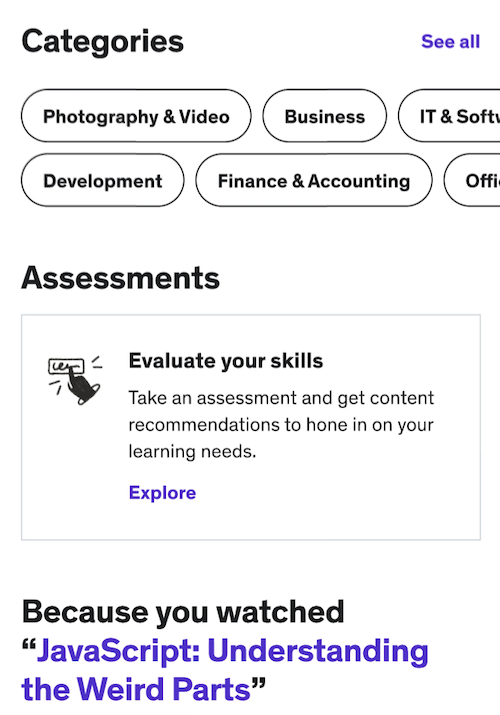
1. After opening the mobile app, tap either the Featured or Discover icon at the bottom of your screen.
2. Next, tap the Assessment option to begin finding and reviewing assessments you wish to take.
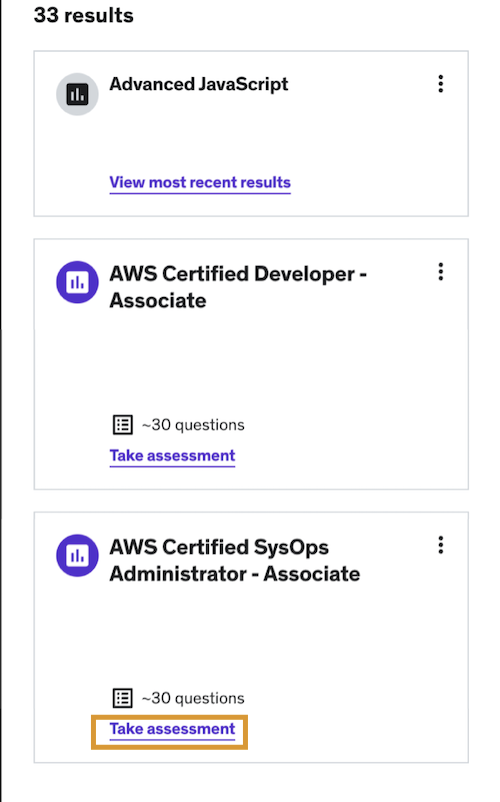
3. Once you’ve chosen an assessment you wish to complete, click Take assessment on the assessment card.
4. Click Start assessment when you’re ready to begin.
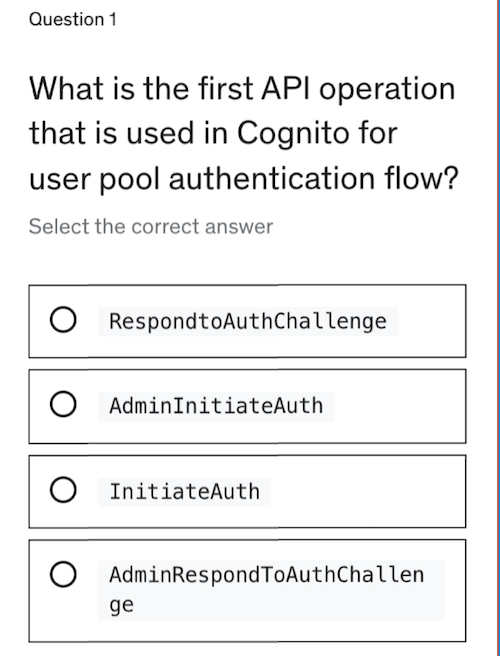
5. Each assessment includes around 30 multiple-choice or multi-select questions and will take approximately 25 minutes to complete.
- Note: If you skip a question, the topic will be marked as an area for improvement. Both skipped questions and incorrect answers will influence the recommended lectures provided at the end of the assessment.
If you Save and Exit the assessment before answering all the questions and come back within 24 hours, you can pick up where you left off. Otherwise, you can start a new assessment and will see a different set of questions.
6. For each assessment, you have two attempts available per 24 hours.
- By limiting assessment attempts, we aim to help you make the most out of your learning experience by encouraging you to take the time to engage with the learning content on Udemy. You can then re-apply your newly solidified knowledge when retaking the assessment.
7. Once you’ve completed the assessment, you'll be brought to the results page, where you can view your overall score and dive into detailed explanations for each question.
8. You will also see a course recommended on the results page of the assessment. Once enrolled, you will see personalized guidance based on recommended areas of focus. Click Enroll now to jump into your personalized course recommendation.
How to continue an in-progress assessment
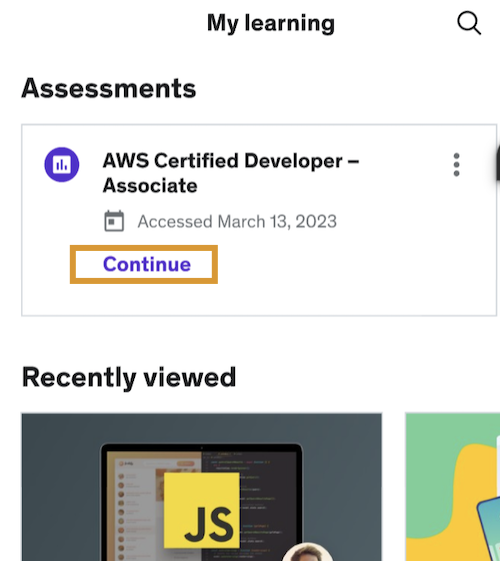
You can find in-progress assessments and your most recent results on your My learning page. Click Continue to pick up where you left off.
-
How to Access and Complete Assessments
Read articleAssessments are a feature that helps learners identify their skill level in a certain topic and guides them to a personalized content recommendation based on their skill set. This article explains how you can access and complete assessments.
Please note: as of December 5th, 2023, assessments are only available to learners who were enrolled in the Personal Plan subscription prior to this date.
- Learning on our mobile app? Review how to access and complete assessments via the app.
How to access assessments
Personal Plan subscribers can follow the steps below to access assessments:
1. To get started, you can access assessments by hovering over the Explore menu at the top of your home page, then click Measure skills with Assessments, or navigate to your My learning page. You can also search for assessments on the Udemy marketplace by searching for relevant topics, for example, AWS.
2. From the Assessments landing page, you can browse, search, or filter for a specific assessment. Select assessments are available in additional languages.
How to start and complete an assessment
- To choose an assessment, click Get started on the assessment card.
2. When you're ready to begin, click Start assessment. Use the Language dropdown to filter assessments by language.
3. Each assessment includes around 30 multiple-choice or multi-select questions and will take approximately 25 minutes to complete.
- If you skip a question, the topic will be marked as incorrect and an area for improvement. Both skipped questions and incorrect answers will influence the recommended lectures provided at the end of the assessment.
- If you exit the assessment before answering all the questions and come back within 24 hours, you can pick up where you left off. Otherwise, you can start a new assessment and will see a different set of questions.
4. For each assessment, you have two attempts available per 24 hours.
- By limiting assessment attempts, we encourage you to spend more time engaging with Udemy’s learning content so you can get the most out of your learning experience. You can then re-apply your newly solidified knowledge when retaking the assessment.
5. Once you’ve completed the assessment, you will be brought to the results page, where you can view your overall score and dive into detailed explanations for each question.
6. You'll also see a course recommended on the results page of the assessment. Once enrolled, you will see personalized guidance based on recommended areas of focus. Click Enroll now to jump into your personalized course recommendation.
7. Once you’re in the recommended course, you can see specific sections highlighted for you based on your skill set. The specific sections will be highlighted (as shown below).
How to continue an in-progress assessment
You can find in-progress assessments and your most recent results on your home page. Click Continue with assessment to pick up where you left off.
You can also access your assessments and most recent results through your My learning page.
-
Assessment Benchmarking
Read articleAssessments help you identify your level of knowledge in a topic and guide you to recommended content based on your proficiency level.
Please note: as of December 5th, 2023, assessments are only available to learners who were enrolled in the Personal Plan subscription prior to this date.
What is benchmarking?
Through benchmarking, you will get additional insight into your level of knowledge and how you compare to others that have completed the same assessment.
How do I interpret my score?
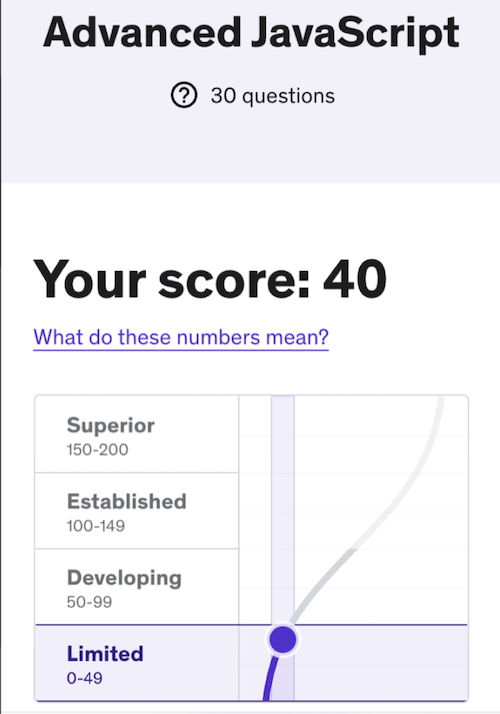
The scores on this assessment can range from 0-200, with 100 representing an average score. If your score is greater than 100, your performance is above average.
Note: Scores on assessments are never perfect. We recommend that you avoid making comparisons to yourself and others based on small differences in scores. Instead, focus on your general classification into one of four proficiency levels. Changes in proficiency level are more likely to represent tangible differences in your level of understanding.
How do I interpret my proficiency level?
You can think of these labels as completing the sentence,
Compared to others, my skills are {your proficiency level}.
Limited (0-49)
A score within the Limited proficiency level reflects little demonstrated knowledge. We expect that performances at this level are from learners new to a subject or who are casually exploring content. The learner would benefit from completing relevant courses and any available learning activities.
Developing (50-99)
Performance categorized as Developing reflects early stages of demonstrated knowledge. Learners in this category show familiarity with content, but clear knowledge gaps remain. Thorough review of relevant courses and active practice with material would benefit the learner.
Established (100-149)
Performance categorized as Established reflects demonstrated knowledge that is better than most other learners. Especially for scores toward the top of this category, a learner has shown they compare favorably with other learners that have completed the same assessment. Learners in this category will benefit from active practice with course material and reviewing the relevant course section recommendations.
Superior (150-200)
Performances categorized as Superior reflect demonstrated knowledge that is better than almost all other learners. There is always room for review and improvement, but learners in this category would benefit from seeking out advanced courses and learning opportunities in this topic, or seeking out new skill topics in which to grow.
What is a percentile?
Your percentile tells you how your performance compares to all learners who have completed the assessment. If your percentile is 30, your performance was better than 30% of learners.
Note: A percentile is not a percentage correct score. It doesn’t tell you how many questions you got right or wrong. Instead, it helps you gauge how your understanding compares to others who have taken the assessment. Try not to over-interpret small differences in percentiles between assessment attempts or different learners. Instead, focus on your general performance level and content recommendations.
Subscription Learning Experiences
-
What is Certification Preparation? Beginning Your Journey Towards Certification Exams
Read article -
In-course labs: Frequently asked questions
Read article -
In-course labs
Read article -
Labs and workspaces
Read article -
Labs: How to Select a Mode
Read article -
Automated Lab Review
Read article -
How to Access Data Science Labs
Read article -
How to access Development labs
Read article -
How to Access DevOpsLabs
Read article -
Workspace sessions and restrictions
Read article -
Taking Assessments on the Udemy Mobile App
Read article -
How to Access and Complete Assessments
Read article -
Assessment Benchmarking
Read article