-
Viewing Course Feedback
Read articleA few days after submitting your course for review, the Udemy review team will leave you course feedback. The course feedback page will list needed and recommended fixes. Before your course can be approved for the marketplace, you will need to complete all the required fixes.
Reviewing Feedback
If the course requires edits, then Needs Fixes will appear on the course image that is posted on your Courses page.
You can access the feedback page by moving your cursor to the applicable course and by clicking See Feedback. You can also access the feedback by navigating to the course management page and by clicking on Course feedback on the left-hand side (if the course is published it will say Udemy feedback).
Communicating With the Review Team
If you have any questions about your feedback, you can reply to comments directly. The reviewer will get back to you, usually within a day. In order for the review team to see your feedback and or question, however, you will need to mark each request as fixed and then resubmit the course for review.
Marking Items as Fixed
Once you've made the required changes, you must mark each item as fixed in order to resubmit your course for review.
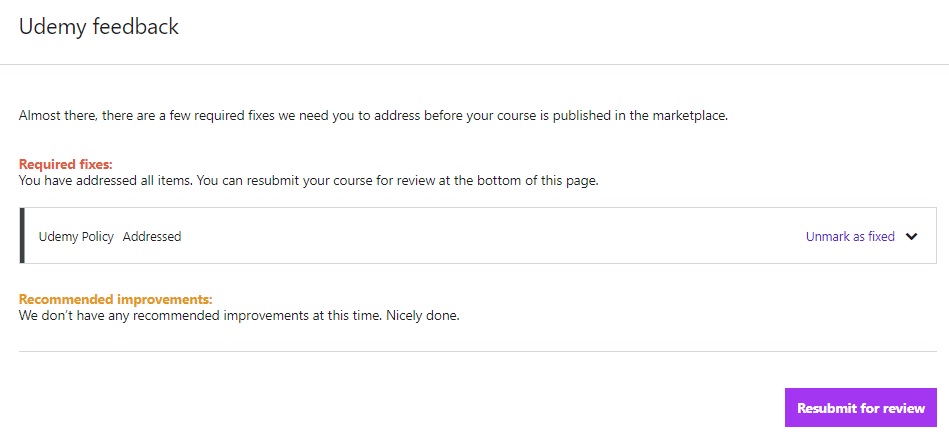
To mark a request as fixed, click on Mark as Fixed on the right hand side. If you need to undo this, click on Unmark as Fixed and the entry section will reappear.
Once each request is marked as fixed then the Resubmit for Review icon at the bottom right of the page will turn color. You can resend your course to the review team by clicking on the icon.
-
Udemy's Quality Review Process
Read articleThis article outlines Udemy’s Quality Review Process, which every course must pass in order to be published and discoverable in the Udemy marketplace.
Table of contents
- What is the Quality Review Process?
- What you need to know
- Course review time
- Check course feedback
- Approved
- Needs fixes
- Questions About Your Review
- Re-submit for Review
What is the Quality Review Process?
At Udemy, our mission is to help anyone learn anything online. To ensure that students have great learning experiences, we have a Quality Review Process in place that every course goes through.
Once your course is completely ready, you need to submit your course for review to enter the course into Udemy’s Quality Review Process.
- Learn more about submitting your course for review.
After you submit your course for review, Udemy’s Quality Review Team will evaluate your course and provide feedback on all the items in our Course Quality Checklist. Once your course passes, it will be published for anyone to discover in the Udemy marketplace. Until then, your course will not be discoverable in the marketplace.
What you need to know
- All courses will be reviewed based on the Course Quality Checklist.
- Required items on the list are required to pass the Quality Review Process.
- Recommended items on the list are highly recommended, as our research has shown these factors to significantly impact student satisfaction. While they are not required to pass the Quality Review Process, they are typically the factors that distinguish the great courses from the rest.
- Your course must pass the Quality Review Process to be published in the Udemy marketplace.
- You can submit your course for review by clicking “Submit for Review” at the bottom of your course page. Learn more about submitting your course for review.
- The Quality Review Process takes 2 business days.
Course review time
The Quality Review Team will review your course based on our Course Quality Checklist. After your course is added to the Quality Review Team queue, you should receive a reply within 2 business days.
To check the status of your course, go to the Instructor Dashboard. A label will appear showing if your course is Live, In Review, Submitted for Review, or Needs Fixes.
Check course feedback
The Quality Review Team will give feedback on the course feedback page, and they will inform you whether the course has been approved, or if it requires fixes.
Approved
If the Quality Review Team does not identify any required fixes, your course will be live and published in the marketplace.
Please note: After a course has been approved and published in the marketplace, it may take up to 24 hours for the course to be discoverable in search results.
Please review any recommendations the team has provided on how to improve student course satisfaction. Action on this type of feedback, however, is not required.
Needs fixes
If your course requires fixes, then it is not live on the Udemy marketplace, regardless of whether it is public or private. To publish the course, please make any required changes, mark them as fixed, and resubmit the course for review.
This article shows how you can view the review team’s feedback, and how you can mark required changes as fixed or respond to the review team directly.
You will receive an email when your course is done being reviewed, which will include a link to your course dashboard, where you can see feedback.
Questions About Your Review
If you have questions about the feedback you've received, speak to a reviewer directly from the feedback page and hit reply. Once you hit reply, our team will be notified of your question and will respond back as soon as possible.
To see an example of how to do this, please refer to this article.
Re-submit for Review
Click mark as fixed as you complete all required fixes. When you're ready for Udemy to review your course again, click the resubmit for review at the bottom of the page.
Once your course is approved, your course link will go live, and students can discover and enroll in your course.
-
Calculating Course Length
Read articleIn order to be approved for the Udemy marketplace, courses must have a minimum of five lectures and at least thirty minutes of video content (note: no video content is needed for “Practice Test Only” courses). When you upload your video lectures for a course and add it to the course curriculum, the system will automatically calculate the time of the video content.
Please note:
- In order for the system to detect and calculate the time of your videos, the lectures must be published. Learn how to create and publish lectures.
- Free courses can only be a maximum of 2 hours in video length.
Where the course length can be viewed
The length of your course is advertised on the course landing page in two different locations.
The approximate time for on-demand videos is posted in the Buy Now or Enroll Now section at the top right hand of the course landing page:
The entire course length, including non-video lectures, is posted in the Course content section farther down the course landing page.
How course time is calculated per lecture type
The length of a course (as shown in the Course content section of the course landing page) is calculated using the criteria below:
Curriculum Item Time Article Lectures One minute for every 240 words Video Lectures The duration of the video Video & Mashup Lectures The duration of the video included in the mashup Assignments If a video is included in the instruction section of the assignment, then the duration of the video will be added to the course time
Please note: since the time a student may take to complete practice tests, quizzes, or coding exercises may vary, these curriculum items do not count towards the course length. -
Submit a Course for Review
Read articleThis article provides instructions for submitting your course for review, and explains how to solve common issues you may encounter during the submission process.
Table of Contents
- What happens when I submit a course for review?
- Before you submit your course for review
- Submit your course
- Why can’t I submit my course for review?
What happens when I submit a course for review?
Once your course is ready to be published, you can submit your course for review. Submitting a course for review will begin the Quality Review process.
After your course has been submitted, the Quality Review team will evaluate your course and provide course feedback.
As soon as the review team approves your course, the URL will go live.
Before you submit your course for review
Before you can submit your course for review, you must complete all the required items on the course management dashboard.
- Review the Udemy course quality checklist.
- See instructions and best practices for completing required and optional items.
Submit your course
1. Once you've completed all the required items, click Submit for Review on the course management dashboard.
After you click Submit for Review, you’ll be prompted to:
- Complete the identity verification process
If you haven’t already done so, you’ll be asked to verify your identity. This process is required for all instructors.
- Learn about the instructor identity verification process.
- Review frequently asked questions about the identity verification process.
- Create a unique URL for your course
-
To create the URL for your course, you can use letters, numbers, underscores, or hyphens.
- Example: www.udemy.com/the-name-of-your-course
- See how to access your course URL.
Why can’t I submit my course for review?
If you haven’t completed all required items for your course, then after you click Submit for Review, you’ll see a popup detailing any outstanding items:
Follow the links on the popup to add all of the remaining required items. Once you've completed the requirements shown, click Submit for Review again to complete the process.
Your course will then enter the Quality Review process.